Manage Module
The Manage module in DocView Capture is the central hub for monitoring, controlling, and maintaining batches across the capture workflow.
From this module, operators can view batch status, apply filters, update properties, and perform administrative actions such as unlocking or deleting batches.
It ensures smooth workflow continuity by giving administrators full visibility into batch details, metadata, and processing history.
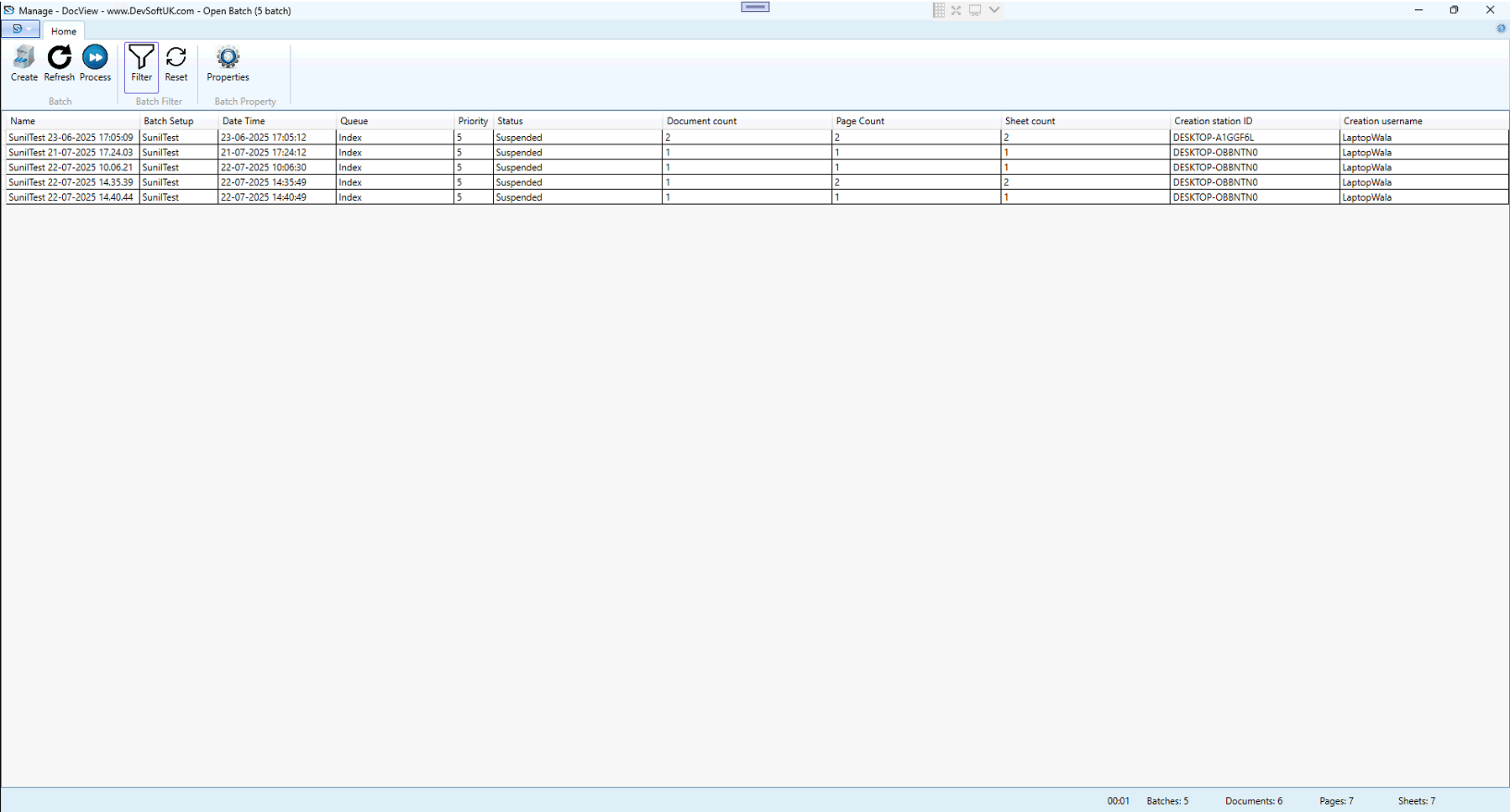
Manage Workflow
1. Batch Initialization
- User opens the Manage Module.
- All available batches are displayed in a structured grid view.
- Each batch entry includes:
- Batch Name (unique identifier)
- Batch Setup (profile)
- Date & Time (created timestamp)
- Queue (current processing stage: Scan, Index, Verify, etc.)
- Priority
- Status (Active, Suspended, Completed)
- Document / Page / Sheet count
- Station ID & Username (who created the batch).
2. Batch Selection & Navigation
- Users can select one or multiple batches.
- Right-click menu provides quick actions:
- Process
- Unlock
- Delete
- Update Setup
- View Properties
- Toolbar options: Refresh, Process, Filter, Reset, Properties.
3. Batch Properties Review
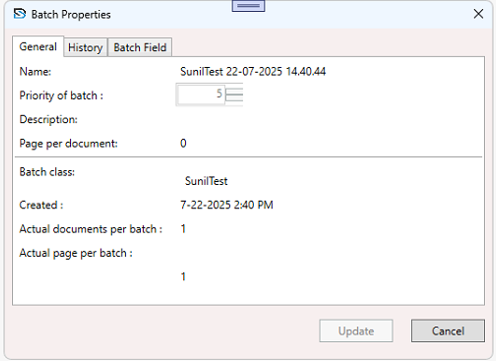
- General Tab – Shows batch name, priority, description, class, created timestamp, and actual document/page counts.
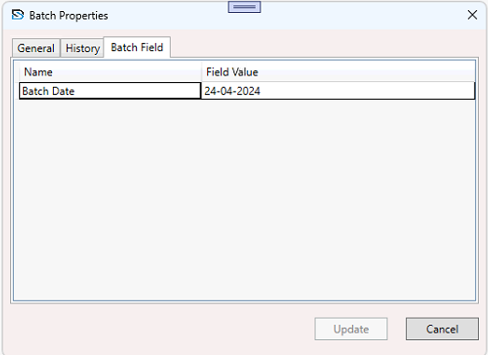
- Batch Field Tab – Contains user-defined fields such as Batch Date, Department, or custom metadata.
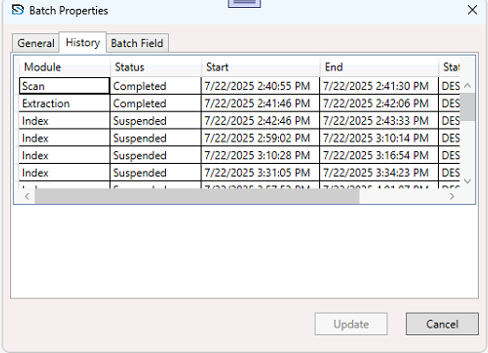
- History Tab – Displays a full log of module transitions (e.g., Scan → Extraction → Index → Verify) with start/end timestamps and station ID for traceability.
4. Batch Filtering
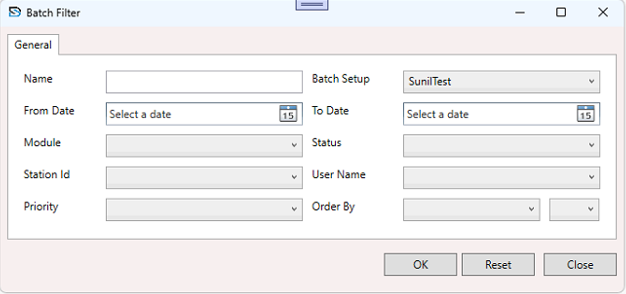
Filters help locate and organize specific batches by:
- Batch Name
- Batch Setup
- Date Range (From–To)
- Status (Ready, Suspended, Completed)
- Module (Scan, Index, Export, etc.)
- Station ID / User Name
- Priority
- Order By (custom sorting)
5. Batch Operations
Operators can perform key actions:
- Refresh – Update the batch list.
- Update Batch Setup – Modify metadata or reconfigure batch class.
- Process – Resume batch from current stage (e.g., re-open in Index).
- Delete – Permanently remove a batch (admin only).
- Unlock Batch – Resolve locked/suspended state for interrupted batches.
- Properties – Open the batch property window for detailed view and updates.
6. Audit & Status Tracking
- Every batch action is logged with time, user, and station ID.
- Suspended, indexed, or completed states are visually tracked in the batch grid.
- Ensures compliance-ready auditing and full operational accountability.
Open Batch Window
Key details available in the batch window:
- Batch Name – Unique identifier automatically generated.
- Batch Setup – Capture profile selected at batch creation.
- Documents / Pages / Sheets – Summarizes batch content size.
- Date & Time – Created timestamp.
- Status – Ready, Suspended, Completed, or Closed.
Toolbar Overview
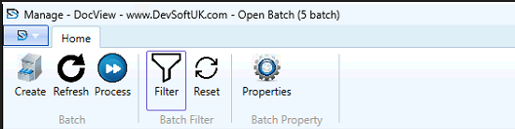
Home Tab
- Create – Start a new batch.
- Refresh – Reload batch list.
- Process – Continue selected batch.
- Filter – Open advanced batch filter window.
- Reset – Clear filters and refresh display.
- Properties – View detailed batch metadata.
Context Menu (Right-Click)
Quick actions available via right-click:
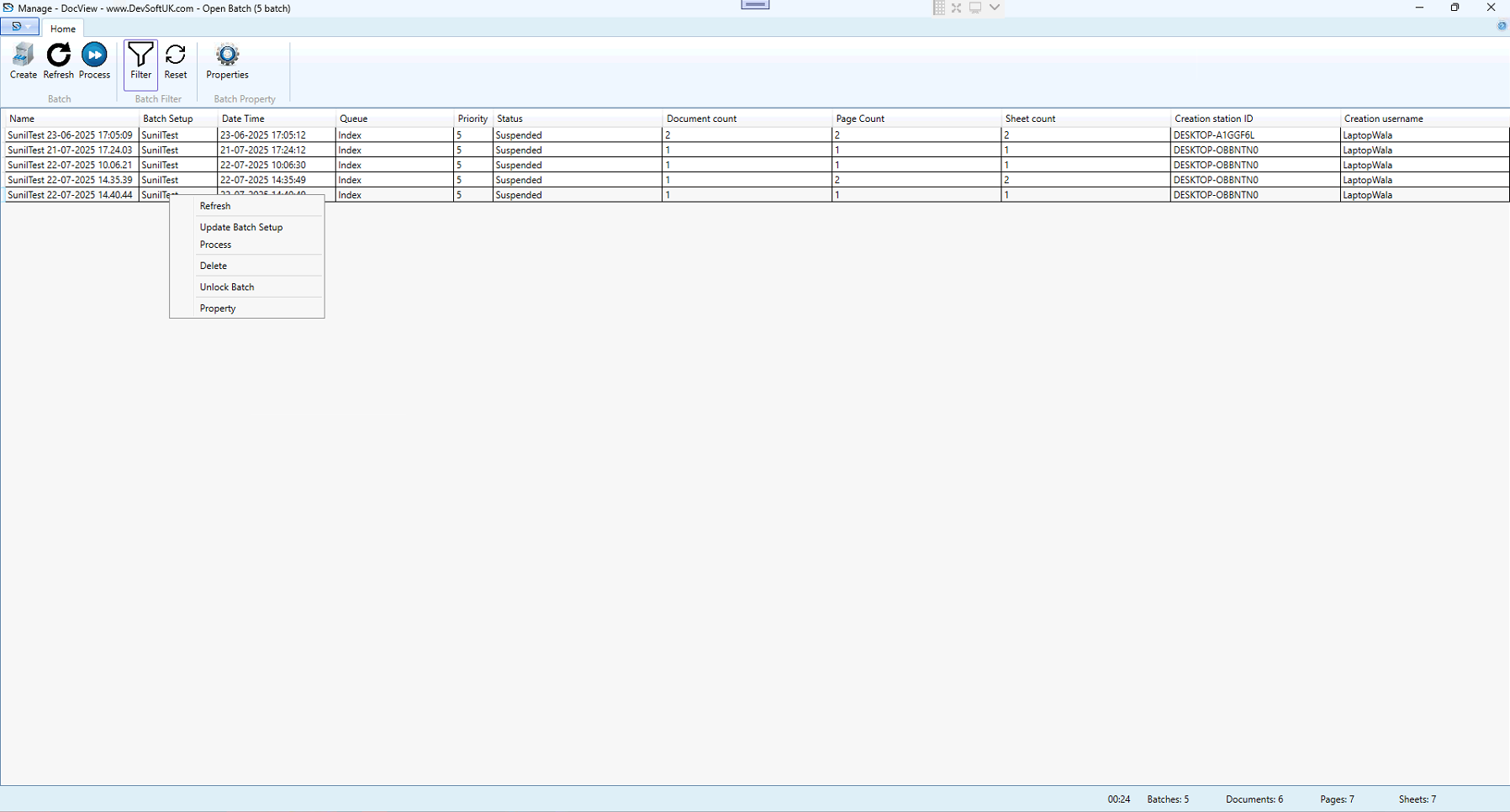
- Update Batch Setup
- Process
- Delete
- Unlock Batch
- Properties