Quality Control (QC) Module
The Quality Control (QC) Module in DocView Capture is the checkpoint where operators verify the quality, accuracy, and completeness of scanned or imported documents before they move into downstream processes such as Indexing, OCR, or Export.
This module ensures that all batches meet defined quality standards by allowing operators to review, validate, and correct documents and pages.
Batch Creation
Unlike the Import or Scan Modules, QC does not create new batches. Instead, it works with existing batches awaiting review.
- Batch Setup Properties and Field Setup Properties are defined beforehand.
- QC operators then process batches that are already prepared for inspection.
1. Initiating a QC Session
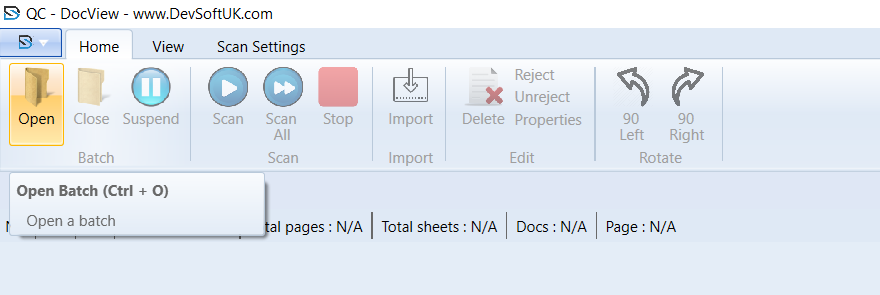
- Navigate to Home → Open (or press
Ctrl + O). - Select a batch from the list of pending QC batches.
- The batch loads into the workspace with its full structure:
- Batch → Document → Page
2. Batch Contents Panel
Batch Node
The top-level container.Document Nodes
Represent individual documents in the batch.Page Thumbnails
Provide previews for navigation and quick review.
3. Workspace View
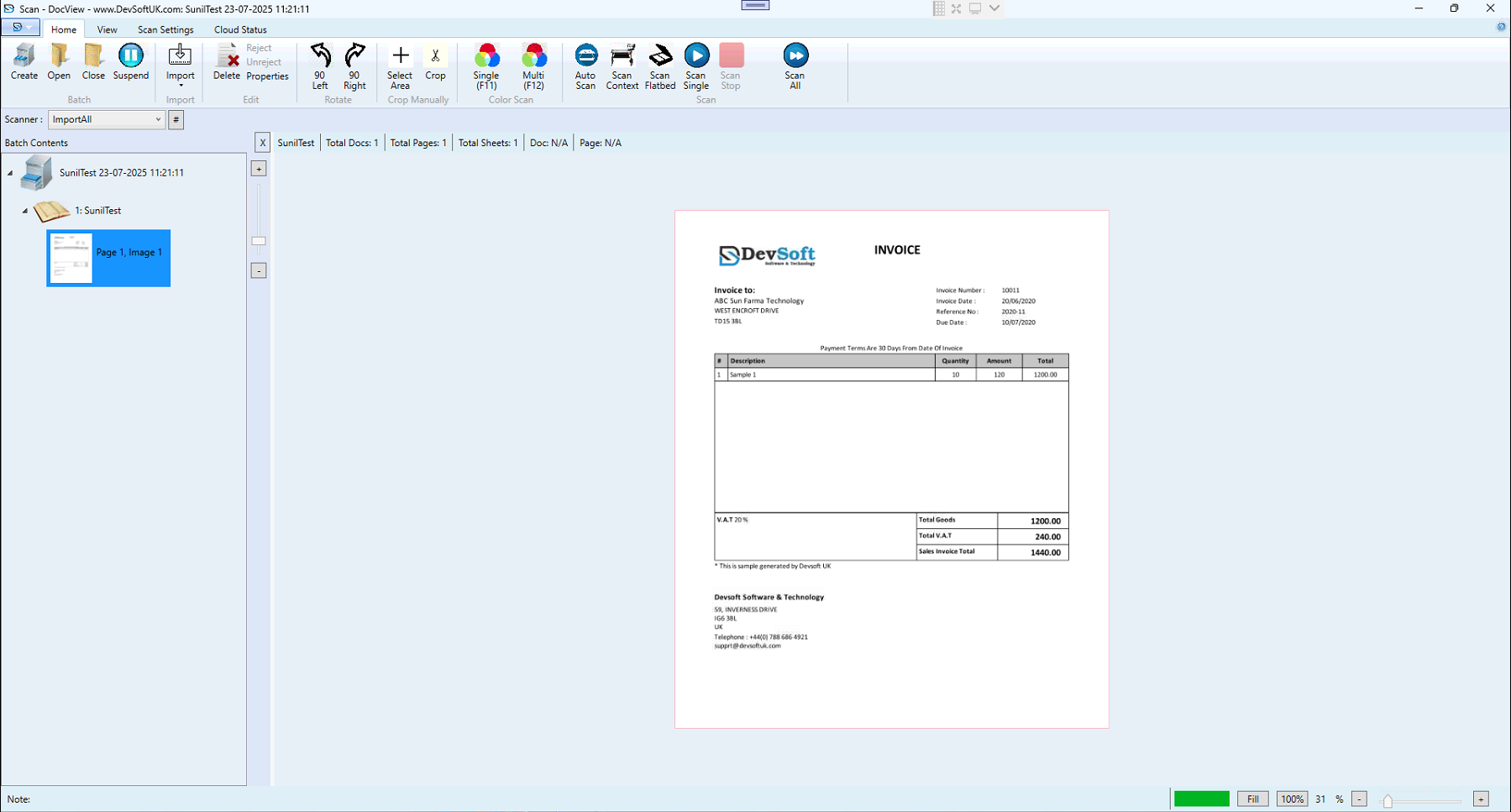
Left Panel
Displays batch hierarchy and thumbnails.Right Panel
Shows a full-page preview for inspection. Operators can zoom, rotate, delete, or reject pages as needed.
QC Operations
Image Validation – Ensure scanned/imported pages are clear, not skewed, blurred, or cut off.
Page Handling
- Rotate – Correct misaligned images (90° Left / Right).
- Delete – Remove blank or unwanted pages.
- Reject / Unreject – Flag pages or entire documents for further review.
- Split / Merge – Adjust documents (if allowed by batch setup).
Batch Lifecycle
- Close – Finalise QC review; no further edits allowed.
- Suspend – Pause QC session and reopen later.
- Open – Load an existing batch into QC.
Status Bar Indicators
The QC status bar provides live metrics:
- Total Docs – Number of documents in the batch.
- Total Pages – Count of all pages.
- Total Sheets – Physical sheet count (important for duplex scanning).
- Doc / Page – Indicates current review position.
Closing an Imported Batch
The Close function finalises the imported batch and sends it forward for Indexing, Classification, or OCR. Once closed:
- Batch status changes to Closed.
- Importing additional files is disabled.
- Downstream workflows are triggered automatically.
Toolbar Overview
Home Tab
- Open Batch – Load a batch for QC review.
- Close Batch – Finalise review and mark batch complete.
- Suspend Batch – Pause QC review.
- Scan / Scan All – (Disabled in QC).
- Stop – (Disabled in QC).
- Import – (Disabled in QC).
- Delete – Remove a selected page or document.
- Reject / Unreject – Mark or unmark items for review.
- Properties – View batch or document properties.
- Rotate (90° Left / Right) – Fix page orientation.
View Tab
- Thumbnails View – Show small previews for navigation.
- Single Page View – Focus on one page at a time.
- Zoom & Fit Tools – Adjust display for inspection.
Cloud Status Tab
- Upload Status – Track cloud upload progress of reviewed batches.
- Retry Failed Uploads – Reattempt transfers without reopening the batch.