Batch Setup Properties – Scan Settings
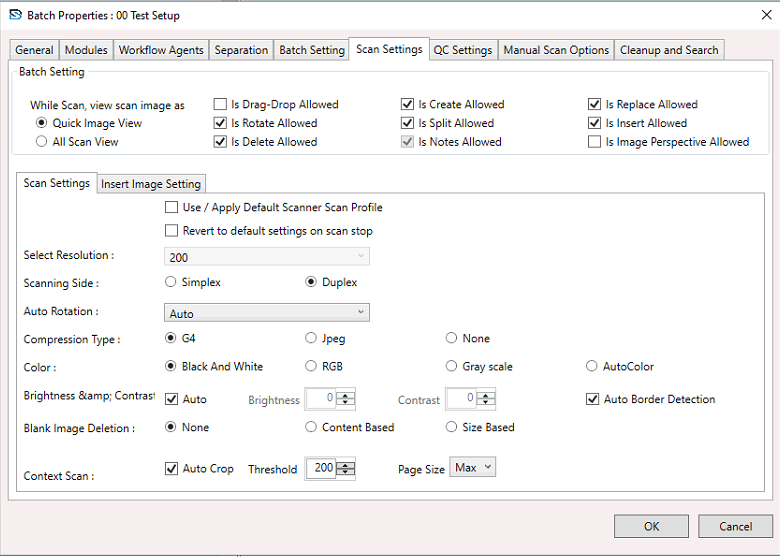
When configuring a Batch Setup, you can adjust scan-related permissions and settings to control the scanning workflow.
To configure Scan Settings:
- Select a Batch Setup, right-click to open the context menu, and choose Batch Setup Properties.
- The Batch Setup Properties window appears.
- In the window, select the Scan Settings section and configure the settings below.
General Scan Permissions
These checkboxes control what actions are allowed during scanning:
While Scan, View Scan Image As
- Quick Image View or All Scan View
Is Drag-Drop Allowed
- Allow drag and drop of scanned images.
Is Create Allowed
- Allow creation of new documents.
Is Replace Allowed
- Allow replacement of scanned images.
Is Rotate Allowed
- Allow image rotation.
Is Split Allowed
- Allow splitting of documents.
Is Insert Allowed
- Allow inserting pages.
Is Delete Allowed
- Allow image deletion.
Is Notes Allowed
- Allow adding notes.
Is Image Perspective Allowed
- Allow image perspective correction (currently unchecked).
Scan Settings Section
- Use / Apply Default Scanner Scan Profile
- Revert to default settings on scan stop
Image and Scanner Configuration
- Select Resolution: (e.g., 200 dpi)
- Scanning Side: Simplex or Duplex
- Auto Rotation Options: None, Auto, Rotate 90, Rotate 180, Rotate 270, Auto Default 90, Auto Default 180, Auto Default 270
- Compression Type: G4 (default), Jpeg, or None
- Color Mode: Black & White, RGB, Grayscale, or AutoColor
- Brightness & Contrast: Auto or manual
- Auto Border Detection
- Blank Image Deletion: None, Content Based, or Size Based
Context Scan Options
- Auto Crop
- Threshold: (default 200)
- Page Size: (e.g., Max)
How It Works
- Scanner follows pre-configured rules during scanning.
- Images are scanned with defined resolution, colour, and orientation settings.
- Blank pages are deleted based on the selected setting.
- Auto crop and border detection refine image quality.
- Allowed actions (rotate, delete, etc.) can be performed instantly.
- Settings reset if Revert to Default is enabled.