Batch Setup Properties – Separation Section
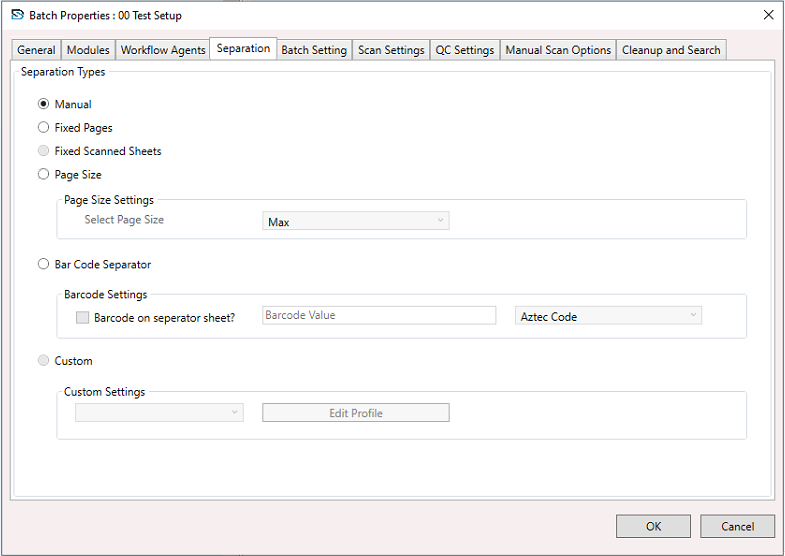
When configuring a Batch Setup, you can define how documents are separated during scanning. To configure these settings:
- Select a Batch Setup, right-click to open the context menu, and choose Batch Setup Properties.
- The Batch Setup Properties window appears.
- In the window, select the Separation section and configure the settings below.
Separation Types
Choose one of the following separation methods:
Manual
- No automatic separation.
- The user manually defines where a new document starts.
- Useful for documents with varying formats or structures.
Fixed Pages
- Automatically separates after a set number of pages.
- Ideal for documents with a consistent page count.
- Example: Every 2 pages is treated as one document.
Fixed Scanned Sheets
- Separates based on the number of physical sheets scanned (not logical pages).
- Useful for duplex (double-sided) scanning.
Page Size
- Separates documents based on page size (e.g.,
A4,Legal). - Useful when document types differ in physical size.
Page Size Settings
- Select the target page size from the dropdown (
A0,A1,A2,A3,A4,A5,A6). - Example: Selecting “Max” separates at the largest page size detected.
Bar Code Separator
- Uses a barcode to identify the start of a new document.
Barcode Settings
- Barcode on Separator Sheet? – If checked, expects a barcode on a dedicated separator page.
- Barcode Value – Specify the barcode text or pattern to trigger separation.
- Barcode Type – Choose the barcode format (e.g.,
Aztec Code,CodeBar,Code 39,Code 93,Code 128,Data Matrix,EAN 8,EAN 13,ITF,MaxiCode,PDF 417,QR-Code,RSS,RSS Expanded,UPC-A,UPC-E,All 1D,UPC EAN Extension,MSI,Plessey,IMB QR Code, etc.).
Custom
- Allows for advanced logic or scripting to define separation rules.
Custom Settings
- Choose a predefined profile.
- Click Edit Profile to adjust the custom logic.
Buttons
- OK – Saves your separation settings.
- Cancel – Discards any changes.