Batch Setup Properties – Modules Section
To configure Modules:
- Select a Batch Setup, right-click to open the context menu, and choose Batch Setup Properties.
- The Batch Setup Properties window appears.
- In the window, select the Modules section and configure the settings below.
Accessing the Modules Section
In the Batch Setup Properties window, select the Modules section to configure the workflow modules.
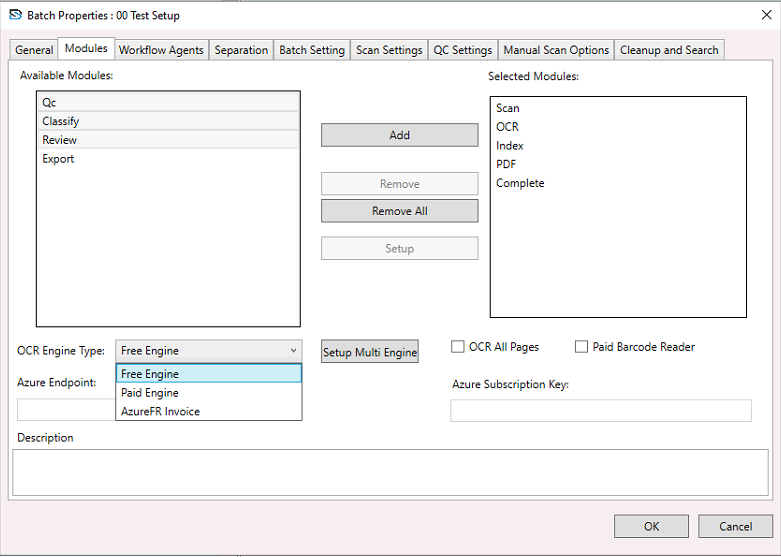
Available Modules
This panel lists modules not currently included in the batch workflow. To add a module, select it and click Add.
Common modules include:
- Admin Setup
- QC (Quality Control): Manual verification of extracted data.
- Classify: Automatic document type identification.
- Review: Validation or correction of extracted data.
- Export: Sends processed data to an external system.
TIP
You can move modules between Available and Selected using Add, Remove, or Remove All.
Selected Modules
This panel displays modules actively part of the current batch workflow, shown in their execution order.
Typical sequence:
- Scan: Document capture.
- OCR: Text extraction from images.
- Index: Data indexing using predefined fields.
- PDF: PDF conversion or generation.
- Complete: Final status update for the batch.
TIP
🔁 You can reorder, configure, or remove modules as needed. Click Setup to modify individual module settings.
OCR Engine Type
- Free Engine: Uses the default OCR tool.
- Paid Engine: Requires a licensed engine for enhanced capabilities.
- AzureFR Invoice: Uses Azure Form Recognizer for invoice processing.
WARNING
Paid and Azure OCR options may require extra configuration and a valid license.
Azure Configuration
- Azure Endpoint: Enter the endpoint URL for Azure OCR service.
- Azure Subscription Key: Provide your Azure Subscription Key for authentication.
Additional Options
- Setup Multi Engine: Assign different OCR engines for various document types for cost-effective, accurate processing.
- OCR All Pages: Enable to OCR every page; disable to OCR specific pages based on rules.
- Paid Barcode Reader: Use a licensed barcode reader for documents with barcodes (e.g., form separation).
Description
Add notes or context about the setup to help others understand the configuration and its purpose.
Once all modules are added, removed, or configured, click OK to save your workflow, or Cancel to discard changes.