Batch Setup Properties – Manual Scan Options
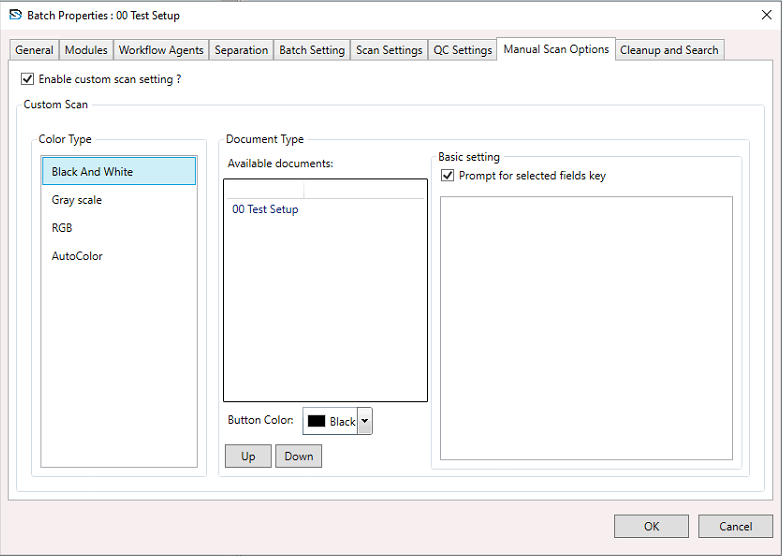
To configure Manual Scan Options:
- Select a Batch Setup, right-click to open the context menu, and choose Batch Setup Properties.
- The Batch Setup Properties window appears.
- In the window, select the Manual Scan Options section and configure the settings below.
Enable Custom Scan
- Tick this box to activate the Custom Scan section.
- If unchecked, the custom scan options are disabled.
Color Type
Choose the scan colour format:
- Black And White – Scans in monochrome.
- Grayscale – Scans in shades of grey.
- RGB – Scans in full colour (Red, Green, Blue).
- AutoColor – Automatically selects the best colour setting based on content.
Document Type
- Displays available document types for scanning.
- Example from the image: 00 Test Setup.
Button Color
- Choose a button colour (e.g., Chartreuse) to visually distinguish the selected document type during scanning or indexing.
Up / Down Buttons
- Used to reorder the document types in the list.
Basic Settings
Prompt for Selected Fields Key
- When checked, prompts the user to enter or verify key fields during scanning.
Index Fields
Below is a list of index fields associated with the document type. You can select which fields to prompt for:
- OrialID
- ClientName
- ReturnReason (checked in the image)