Index Module
The Index Module in DocView Capture is responsible for validating, enriching, and finalizing the data extracted during OCR.
This is the stage where operators review recognized fields, make corrections, and confirm metadata before documents are approved for export or integration.
It transforms raw OCR results into verified business data through human-assisted indexing and structured validation.
❖ Index Workflow
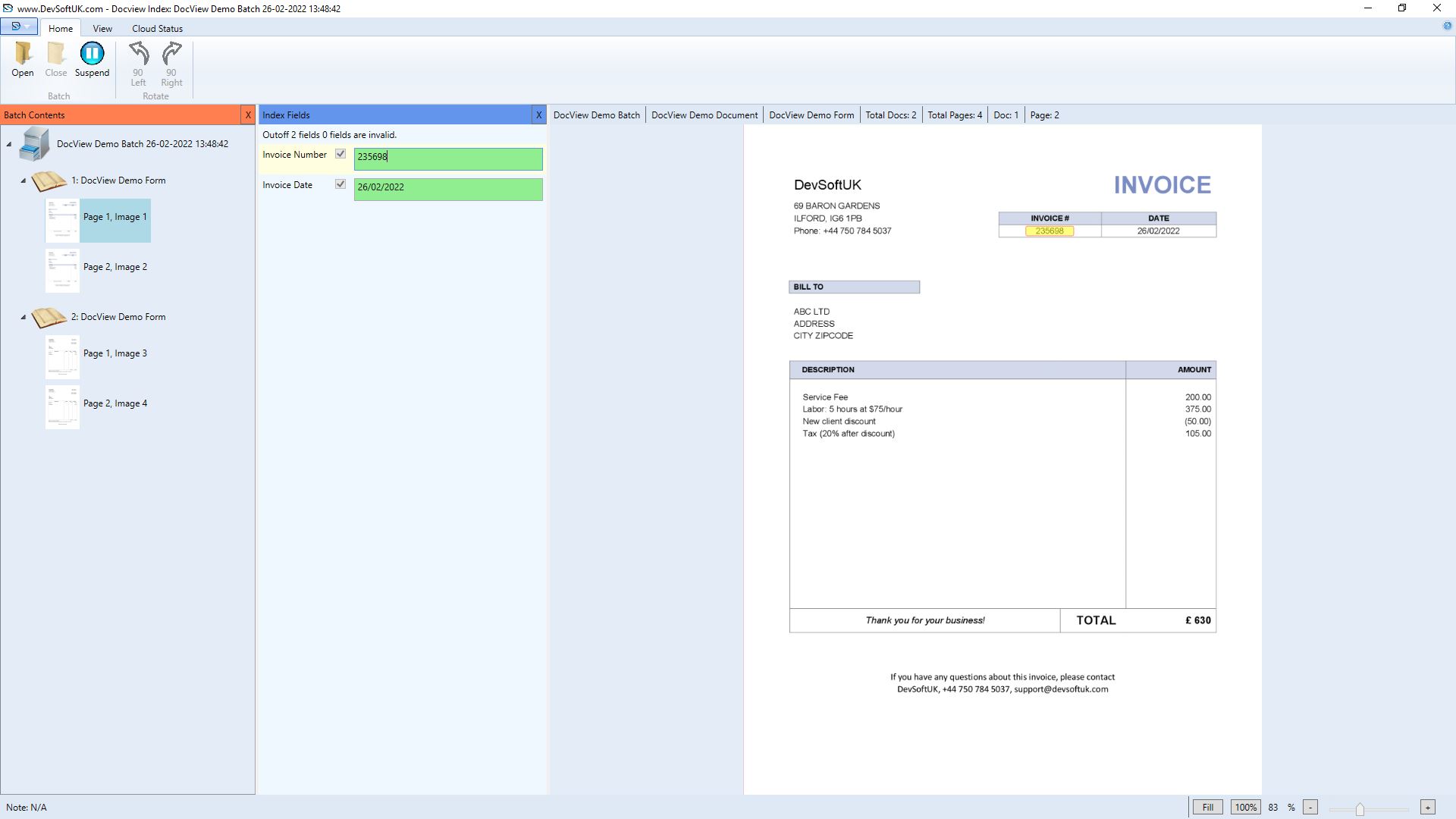
1. Batch Initialization
- User opens a batch from the available batch list.
- Example: Batch 27781, DocView Demo Batch, containing multiple documents ready for indexing.
2. Document Navigation
- Pages and documents can be browsed sequentially.
- Operators can rotate, zoom, and use the lasso tool to correct captured text or assign regions.
3. Field Validation
- Extracted fields (e.g., Invoice Number, Vendor, Date, Total) are displayed in the Data Entry Panel.
- Users confirm or correct values.
- Validation rules (regular expressions, lookup lists) ensure accuracy.
4. Status Tracking
- Each document is marked as Indexed, Pending, or Suspended based on operator action.
- Batch status updates dynamically as documents are processed.
5. Results Finalization
- Once fields are verified, data is saved back into the batch.
- Indexed data flows into Export Module or external systems (e.g., ERP, DMS, Azure Cloud).
❖ Open Batch Window
- Batch Name – Unique identifier.
- Batch Setup – Capture profile used.
- Documents / Pages / Sheets – Batch size summary.
- Date & Time – Creation timestamp.
- Status – Current state (Ready, Suspended, Closed).
❖ Toolbar Overview
Home Tab
- Batch Setup Properties
- Open Batch – Load selected batch for indexing.
- Close / Suspend / Delete – Manage batch lifecycle.
- Rotate Left / Right – Adjust page orientation for better readability.
- Previous / Next Page / Document – Manage batch lifecycle.
- Lasso Tool – Select and correct text regions.
View Tab
- Batch Contents – View document/page hierarchy.
- Data Entry – Open field entry panel.
- Status Bar – Show system and batch information.
- Zoom Options – Fit page (whole page, width, height, 100%).
Cloud Status Tab
- Status – Shows connection state with configured cloud services.
- Azure Integration – Indicates if batch is linked with Azure for cloud export.
❖ Status Indicators
- Indexed – Document fully verified.
- Pending – Document awaiting field validation.
- Suspended – Temporarily on hold, can be resumed later.