Validator Setup Properties
The Validator Setup feature in DocView Capture ensures that data captured from documents meets required formats, structures, or custom business rules before further processing or export.
It prevents errors and maintains data quality across workflows.
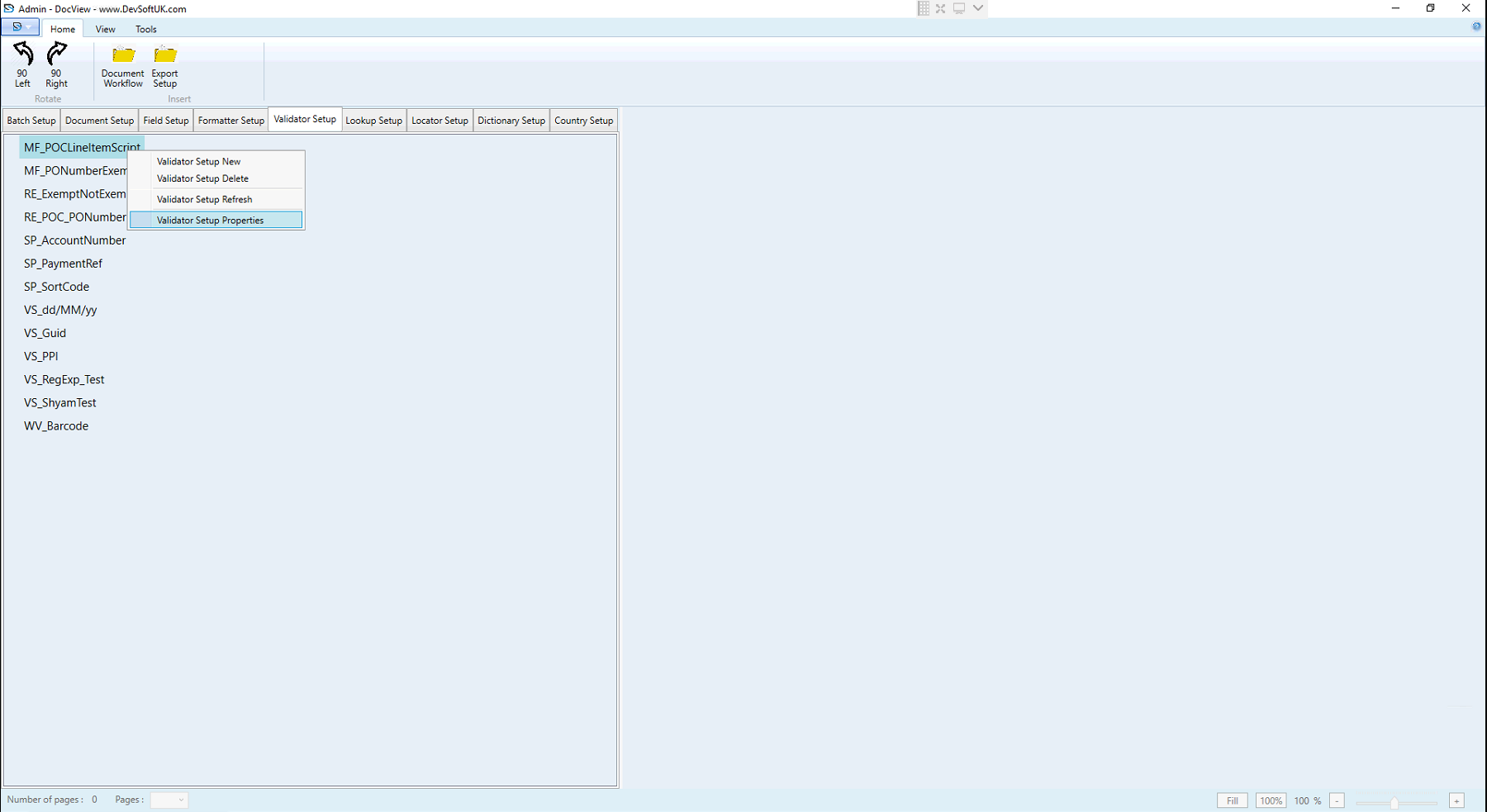
Validator Setup Properties
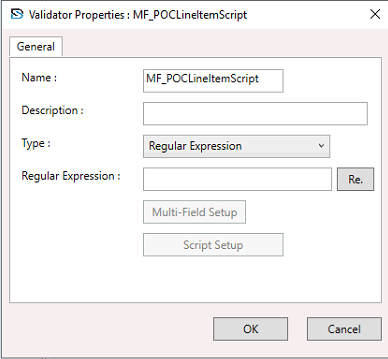
Name
- Unique system identifier for the validator (e.g.,
MF_POCLineItemScript).
Description
- Optional: Helps document the validator’s purpose for admins.
Type
Choose the logic type:
- Regular Expression - Simple pattern match.
- Script - Use custom C# code for complex logic.
- Multi-Field Script - Validate using logic across multiple fields.
Regular Expression
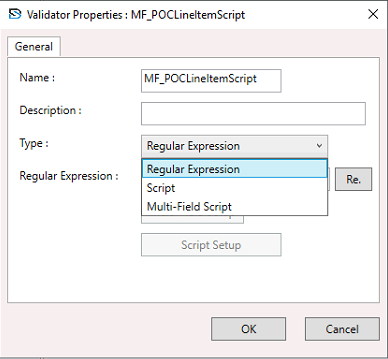
- Enter or select a regular expression pattern if Type = Regular Expression.
Example
For date validation - (\d{2})/(\d{2})/(\d{4})$
Multi-Field Setup
- Button used if Type = Multi-Field Script.
- Allows configuration of which fields are checked together.
Script Setup
- Button used if Type = Script or Multi-Field Script.
- Opens the Validator Script configuration window.
Validator Type
- Regular Expression - Matches data to a defined text pattern (quick and efficient).
- Script - Runs user-defined C# code for highly customized validation logic.
- Multi-Field Script - Runs C# code across multiple field values (e.g., compare Invoice Amount with Total Amount).
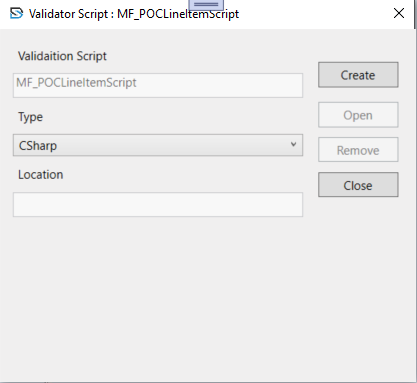
Validator Script
- Validation Script Name - Name of the validator (read-only).
- Type - Language type (default is C#).
- Location - Path of script file (optional or set by system).
Buttons
- Create - Generate new script template.
- Open - View or edit existing script.
- Remove - Unlink the script from validator.
Regular Expression Profiles Window
- Type - Categorize pattern (e.g., Date, Numeric, Alphanumeric).
- Name - Save pattern with a name for reuse.
- Regular Expression - Write your regex pattern.
- Is Ignore Pattern Whitespace? - Optional; ignores white spaces in matching.
- Test Area - Enter test values and click Test to instantly validate against your pattern.