Scan Module
The Scan Module in DocView Capture is the entry point for converting physical documents into a structured digital format. It organises scanned images into batches — controlled containers that maintain document integrity and scanning metadata.
This module often serves as the first stage in end-to-end document processing, feeding downstream workflows like OCR, indexing, classification, and export.
Batch Creation
A batch defines the scanning session environment — linking scanner hardware, capture settings, indexing requirements, and workflow routing. Without a batch, no images can be stored or tracked.
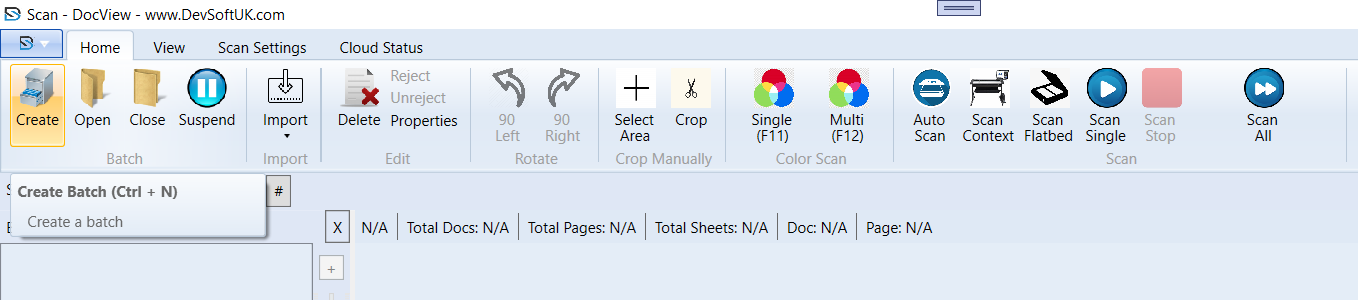
1. Create Command
Navigate to Home → Batch group → Create or press Ctrl + N.
2. Configure Batch Parameters
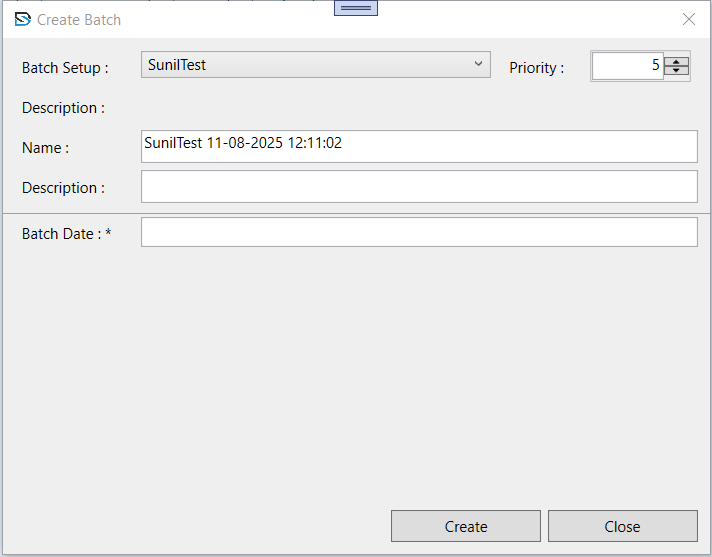
- Batch Setup – Preconfigured template containing scanner defaults (DPI, color mode), field definitions, and workflow links.
- Priority – Determines processing order; lower numbers are processed sooner.
- Name – Default:
[BatchSetupName] [YYYY-MM-DD HH:MM:SS]; best practice: add descriptive identifiers (e.g.,Invoices_July_2025_SiteA). - Description – Internal note to locate or audit batches.
- Batch Date – Influences workflow routing; ensure correct dates to avoid misrouting.
3. Commit Creation
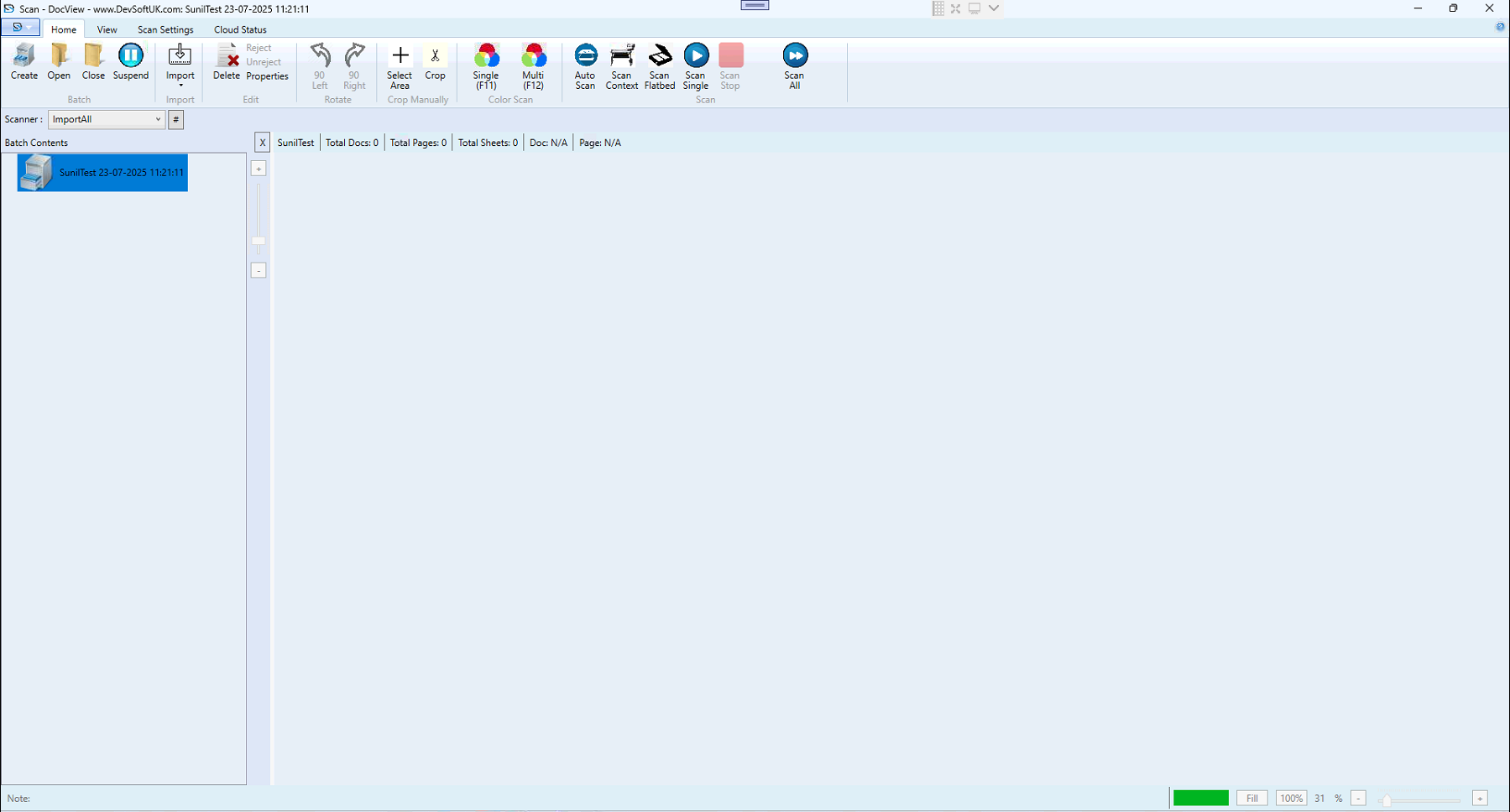
Click Create to initialise the batch. DocView assigns a unique Batch ID and links it to the selected Batch Setup. The batch appears in the Batch Contents Panel.
Batch Workspace
Batch Contents Panel
- Batch Node – Top-level container.
- Document Nodes – Individual documents within the batch.
- Page Thumbnails – Image previews for each scanned page.
Status Bar
Displays live batch metrics:
- Total Docs – Number of document nodes.
- Total Pages – Cumulative page count.
- Total Sheets – Physical sheet count (important for duplex scanning).
- Doc & Page – Active selection indicator.
Scanning Operations
Digitise physical pages into images linked to the active batch.
Methods:
- Single (F11) – Manual single-page capture; ideal for delicate or irregular documents.
- Multi (F12) – Continuous feed capture; best for large stacks via ADF.
- Auto Scan – Fully unattended until input tray is empty or operator stops.
- Scan Context – Uses embedded scanning parameters; no manual configuration needed.
- Scan Flatbed – For bound originals or non-ADF documents.
- Scan Single – One-click scan using last applied settings.
Closing a Batch
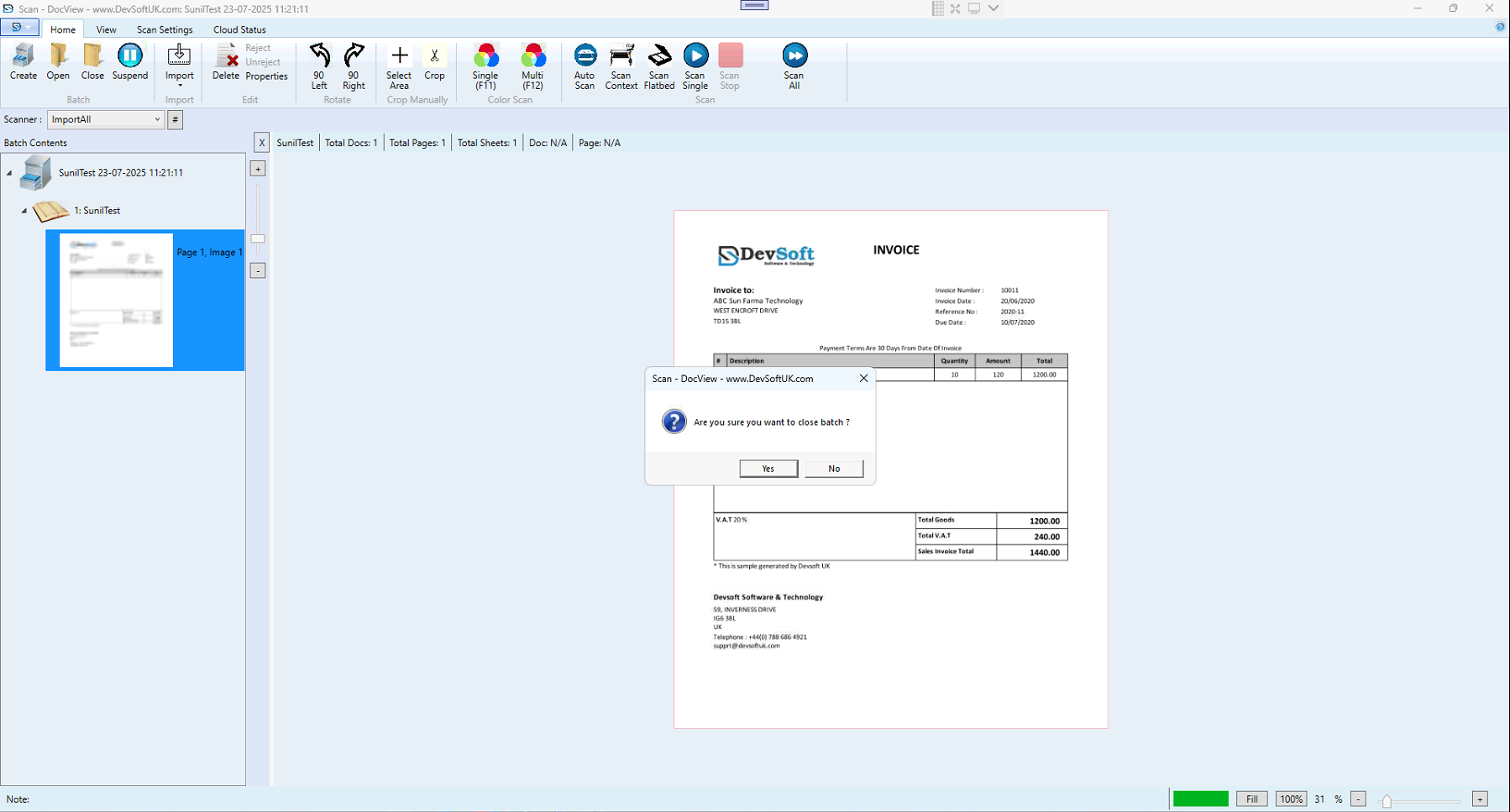
Closing a batch locks it for scanning and signals readiness for indexing/processing.
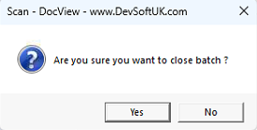
- Select Close in the toolbar.
- Confirmation prompt: “Are you sure you want to close batch?”
- Clicking Yes:
- Changes status from Open to Closed.
- Disables scanning for this batch.
- Triggers downstream workflows (e.g., OCR queue).
Closed batches are read-only; reopening requires administrator access.
Suspending a Batch
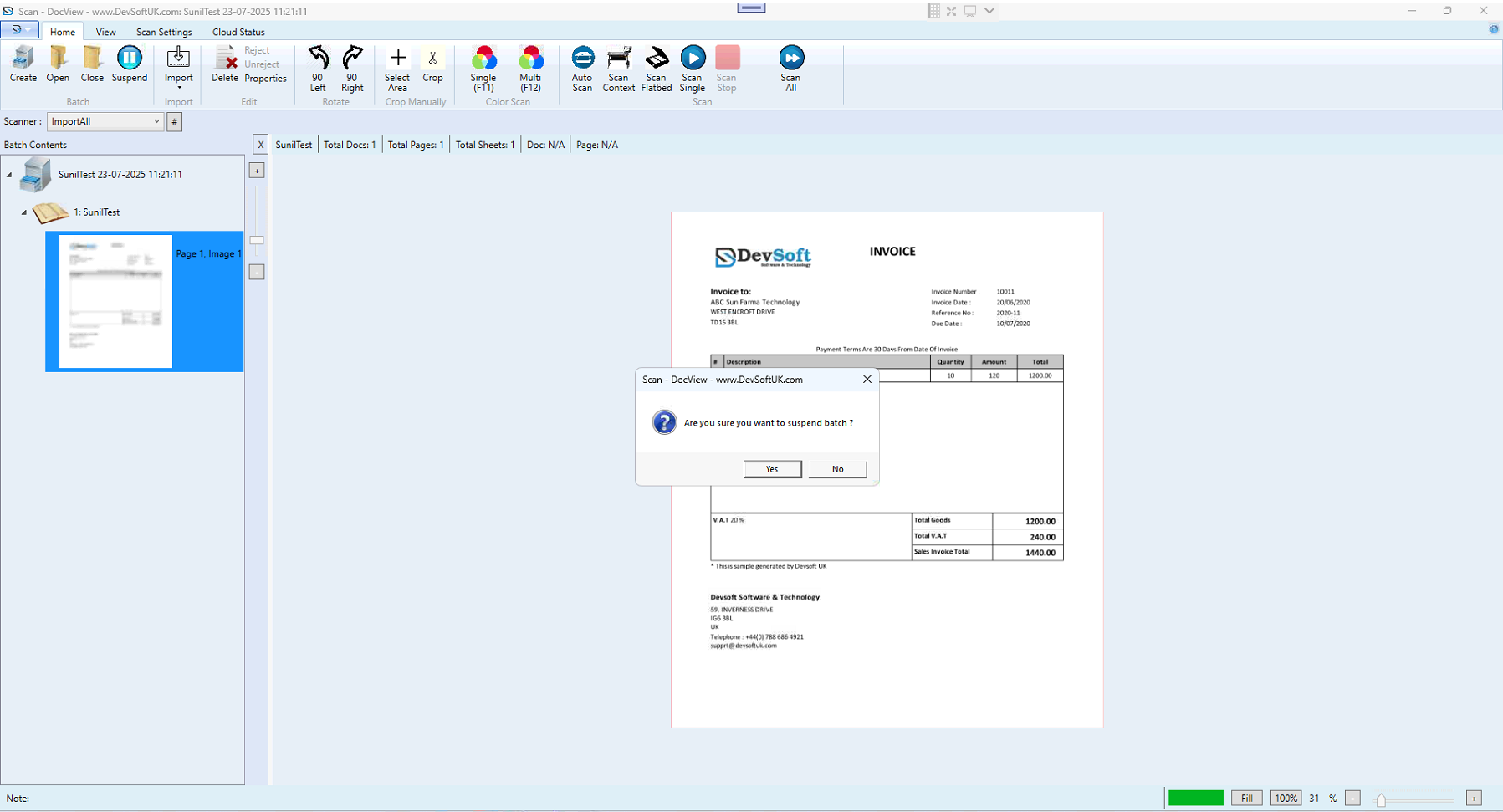
Suspension pauses work while keeping the batch editable for later.
- Confirmation prompt: “Are you sure you want to suspend batch?”
- Clicking Yes:
- Changes status from Open to Suspended.
- Saves scanned images and metadata.
- Batch can be reopened later with Open.
State Indicators
Home Tab

Central control panel for scanning and batch management:
- Create Batch – Opens batch creation dialog.
- Open Batch – Displays existing open/suspended batches.
- Close Batch – Finalises current batch.
- Suspend Batch – Pauses batch temporarily.
- Delete Batch – Removes an unwanted batch.
- Scan Button – Starts scanning process.
Scan Settings Tab

Controls scan quality, speed, and output format:
- Resolution – Scanning detail.
- Color Mode – Color, Grayscale, Black & White.
- Duplex/Single Side – Enable/disable double-sided scanning.
- File Format Selection – TIFF, PDF, JPEG.
- Image Enhancement – Deskew, despeckle, brightness/contrast.
- Scanner Selector – Switch between connected devices.
View Tab

For reviewing scanned documents:
- Thumbnail View – Miniature previews.
- Single Page View – Zoomed inspection.
- Move Page – Change page order.
- Zoom & Fit Options – Adjust viewing scale.
Cloud Status Tab

Tracks cloud upload progress:
- Upload Queue – Documents waiting to upload.
- In-Progress Uploads – Real-time progress.
- Completed Uploads – Successfully uploaded batches.
- Failed Uploads – Documents that could not upload.
- Retry Option – Reattempt failed uploads.
- Cloud Connection Indicator – Online/offline status.