Publish a Batch Setup
When you finish setting up or editing a batch setup, you must publish it. Publishing ensures the setup is complete and ready for scanning or importing documents. You cannot create batches based on a batch setup until it is successfully published without errors.
Before Publishing
- Use the Validate function to identify and resolve any errors or warnings.
- Right-click the selected batch setup and choose Batch Setup Publish from the context menu.
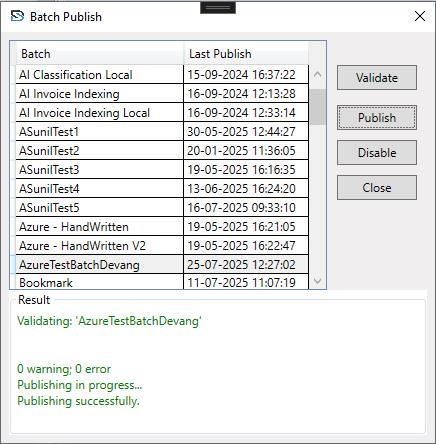
- The Publish window appears.
Validation Process
- On the Publish window, select one batch setup.
- (Optional) Select the Cancel Publish / Validate operation if error occurs checkbox to automatically stop the process if an error is encountered.
- Click Validate to begin the process.
- If validating multiple setups, a progress bar will appear.
- Validation results are displayed in the Results box.
INFO
- Errors indicate settings that will prevent successful batch processing. These must be resolved before publishing.
- Warnings highlight potential issues but will not block publishing. Review them to ensure configurations are valid.
If errors or warnings appear, click Close to review and fix the affected settings. Repeat validation as needed until no errors remain.
Steps to Publish a Batch Setup
- After successful validation, click Publish.
- The publish process performs thorough checks on your selected batch setups.
- If publishing multiple setups, a progress bar will appear.
- Results are displayed in the Result box.
- If errors or warnings appear, click Close to review and correct the affected settings.
- Repeat the steps as needed until the publish process completes without errors.
- Click Close to exit the window.
A message will indicate how many batch setups were successfully published before any error occurred.