Formatter Setup Properties
In DocView Capture, Formatter Setup defines how extracted field data is transformed, validated, or standardized before being passed for further processing or export.
- Formatters are attached to fields to ensure extracted values comply with business, regulatory, or technical requirements.
- Proper configuration minimizes manual correction, improves data quality, and ensures consistency across document types.
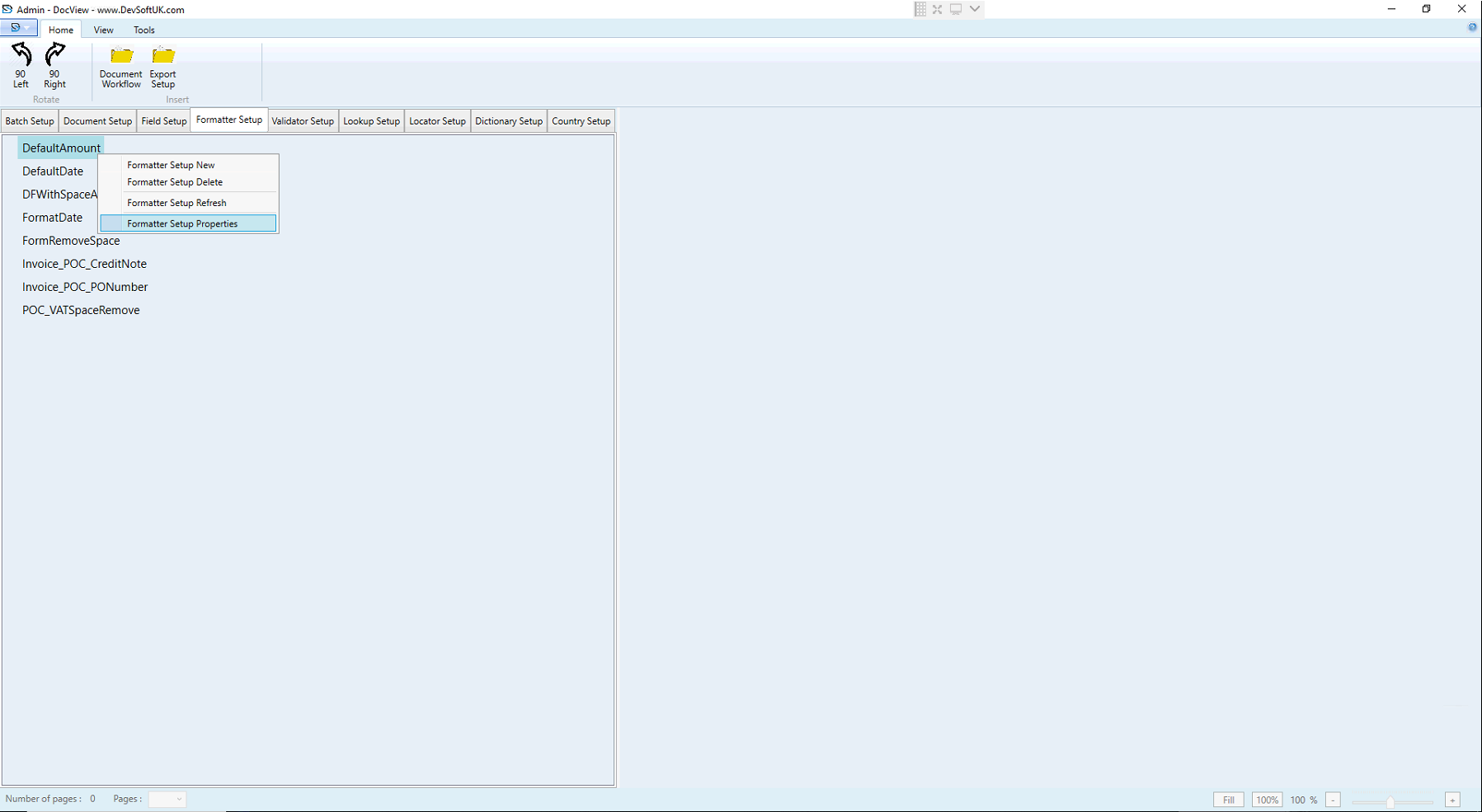
General Formatter Properties
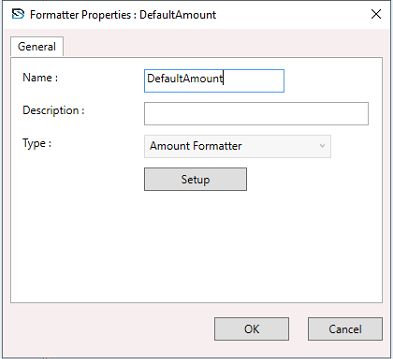
Name
- Unique identifier for the formatter (e.g.,
DefaultAmount).
Description
- Optional details describing the formatter’s purpose.
Type
- Specifies the formatter category (e.g., Amount Formatter, Date Formatter, Script Formatter).
- Once assigned, the type cannot be changed.
Setup
- Click the Setup button to open the detailed configuration window based on the selected type.
Amount Formatter
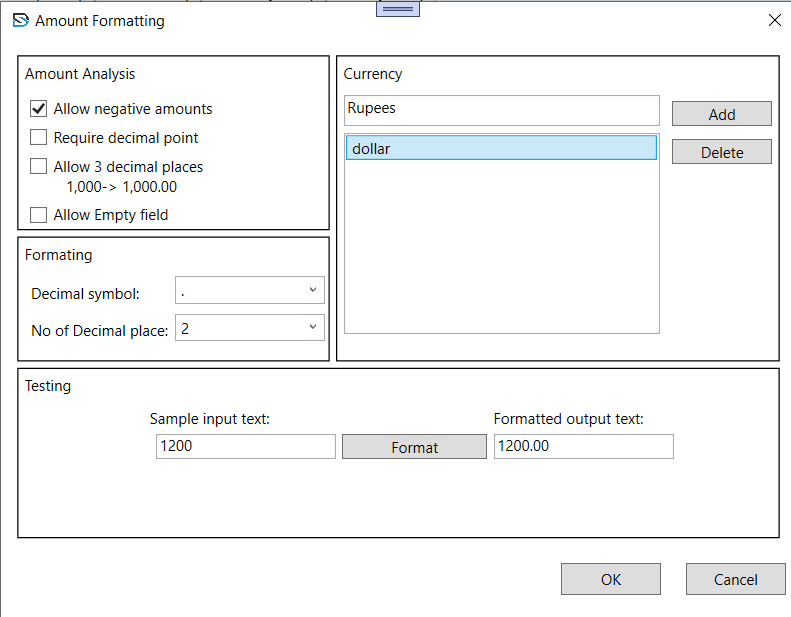
The Amount Formatter standardizes and validates numerical values, especially monetary amounts.
Amount Analysis Options
- Allow negative amounts – Supports values like
-1000. - Require decimal point – Enforces decimal precision.
- Allow 3 decimal places – Supports thousands separator formatting (e.g.,
1,000.00). - Allow empty field – Accepts blanks where amounts are optional.
Currency Settings
- Add or delete custom currency names (e.g., Rupees, Dollar).
Formatting
- Decimal Symbol – Define the decimal separator (e.g.,
.or,). - No of Decimal Places – Enforce consistent decimal precision (e.g., 2 for
1200.00).
Testing Panel
- Allows live testing of sample input text to see formatted output.
Date Formatter
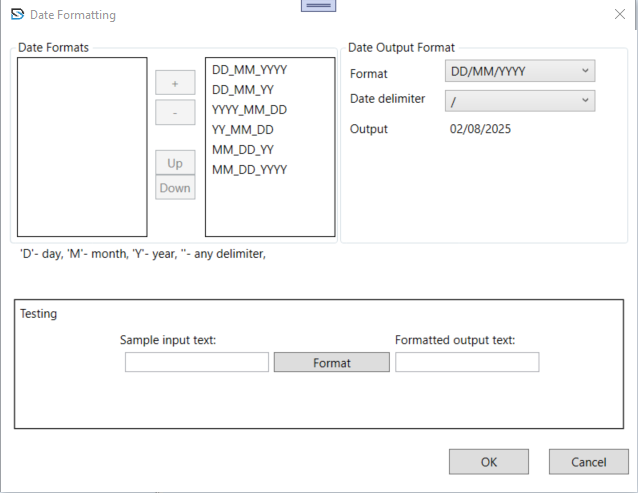
The Date Formatter validates and converts extracted dates into a standardized output format.
Date Formats
- Lists all acceptable input formats (e.g.,
DD_MM_YYYY,YYYY_MM_DD,MM_DD_YYYY). - Allows adding/removing formats or prioritizing them.
Date Output Format
- Choose how the final date should appear (e.g.,
DD/MM/YYYY). - Select the delimiter (e.g.,
/,-).
Testing Panel
- Enter a sample input to view the formatted date output.
Script Formatter
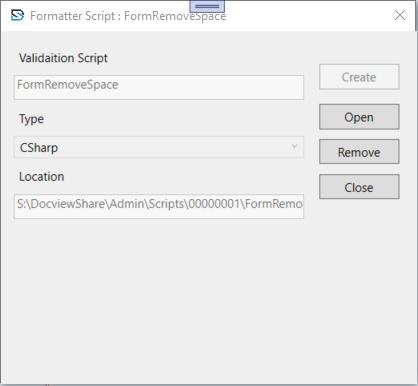
The Script Formatter applies custom logic to manipulate field values using scripts.
Validation Script Name
- Name of the script (e.g.,
FormRemoveSpace).
Type
- Programming language used for the script (e.g., CSharp).
Location
- File path where the script is stored.
Actions
- Create – Define a new script.
- Open – Edit the existing script.
- Remove – Delete the script from the field.
- Close – Exit the window.
NOTE
Accurate and thoughtful Formatter Setup is crucial for minimizing errors and maximizing automation efficiency.
It complements the Field Setup by ensuring the data extracted is clean, consistent, and compliant with organizational rules.
Delete Formatter
To remove an existing formatter from the system:
- In the Formatter Setup tree view, select the formatter you want to delete.
- Right-click on the formatter to open the context menu.
- Select Formatter Setup Delete from the menu.
- A confirmation dialog box will appear asking if you want to delete the formatter.
- Click Yes to proceed.
WARNING
If the formatter is still assigned to any document class or field, the system will prevent deletion and display a warning message:
“Formatter is referenced by a document! Cannot delete the selected formatter.”
To successfully delete a formatter:
- First, unassign or remove the formatter from all document fields and classes where it is currently in use.
- Once no references exist, repeat the deletion process.
TIP
This safeguard ensures that essential formatter logic tied to active document processing is not accidentally removed.